 Composal
Verify
Tailscale
Connect Verify browsers to your tailnet and test private previews or apps running on localhost.
On this page
Test private apps with Tailscale
Send Verify browser agents to an internal preview or an app running on your own computer through Tailscale. With Tailscale, the app can stay private: each browser sandbox joins your tailnet with a dedicated tag and the access you grant it. You need a Tailscale administrator to configure the policy and OAuth client, and a Composal organization administrator to save the connection.
Test an app running on localhost
A remote browser's localhost refers to its own sandbox. To test your computer's app, expose it through your tailnet and use that reachable address as the Verify environment URL.
-
Install and sign in to Tailscale on the computer running your app. Start the app, for example at
http://127.0.0.1:3000. -
On that computer, run:
Bashtailscale serve 3000Follow any prompt to enable HTTPS. Copy the HTTPS tailnet URL printed by the command, such as
https://dev-laptop.example-tailnet.ts.net, and keep the command running. Tailscale Serve proxies the local port within your tailnet; its access policy still applies. -
Configure the restricted connection below. Allow the Verify source tag to reach this computer on TCP 443, the Serve endpoint's port. For a user-owned laptop, use its exact Tailscale IP as the policy destination rather than retagging your personal device. Adapt the policy's accept and deny tests to that address.
-
Save the HTTPS tailnet URL as your Verify environment URL and select the Tailscale connection. Ask your connected agent to prepare one short journey against that environment, review its actions and expected outcome, then launch it. Keep your computer awake, Tailscale connected, and the app and Serve running until the run finishes.
If your app already listens on its Tailscale interface, you can instead use http://<tailscale-ip>:<app-port> and allow that exact port. A service bound only to 127.0.0.1 needs a proxy such as Serve. Configure your development server's allowed hosts, redirects, API URLs, and WebSocket endpoints for the tailnet address: a redirect or request to localhost sends the remote browser back to its own sandbox.
Connect Tailscale
An organization administrator can give Verify browser agents access to a preview on your Tailscale network. This is a network connection for the selected Verify environment; it does not sign an agent into your application. Use a separate test account in the project's Credentials when the preview requires a login.
Verify supports Tailscale OAuth clients using the client credentials flow. It does not support the OAuth Apps browser consent and callback flow. Tailscale's current OAuth Apps device flow requires fresh consent for each new device and creates user-owned devices; Verify uses a dedicated tag so browser sandboxes can enroll automatically with restricted access. See Tailscale OAuth Apps device provisioning.
-
In your Tailscale policy, create a dedicated source tag such as
tag:composal-verifyand a destination tag for the preview service. Grant the source only the destination and ports the browser needs. For an HTTPS preview on a tagged Tailscale device, a starting policy is:JSON{ "tagOwners": { "tag:composal-verify": ["autogroup:admin"], "tag:preview-web": ["autogroup:admin"], "tag:production-db": ["autogroup:admin"] }, "grants": [ { "src": ["tag:composal-verify"], "dst": ["tag:preview-web"], "ip": ["tcp:443"] } ], "tests": [ { "src": "tag:composal-verify", "accept": ["tag:preview-web:443"], "deny": ["tag:preview-web:22", "tag:production-db:5432"] } ] }Merge this into your existing policy rather than replacing it. Change the destination tag and port to match your preview, and use a real sensitive destination in the deny test. If the preview is behind a subnet router, grant the exact private address and port instead. Review every existing grant and ACL that also matches
tag:composal-verify: permissions are additive, so a broad rule can give the browser access beyond this example. Tailscale's default allow-all policy must be replaced with the narrow policy you intend. Save the policy only after its access tests pass. See Tailscale grants and policy tests. -
In the Tailscale admin console, open Settings → Trust credentials and create an OAuth client. Give it a recognizable name, such as
Composal Verify. Choose custom scopes, enable Auth Keys → Write (its required read access is included), and restrict it totag:composal-verify. Do not create an all-scopes client. After generating the credential, the Credential created dialog displays Client ID and Client secret, each with a copy button. Keep this dialog open until you have saved both values in Verify: the full secret is shown only once. Do not put it in chat, a Scenario, or a screenshot. If you close the dialog before copying the secret, create a replacement OAuth client with the same restricted scope and tag. Verify uses this credential to mint a one-use, ephemeral, preapproved auth key for each browser sandbox; the OAuth secret stays in Composal's encrypted storage. See Tailscale OAuth clients. -
In Composal, open your project and follow Environments → selected environment → Network Access → Private network → Add Tailscale connection. Enter a name, the Tailscale OAuth client ID and secret, and the exact device tag from your restricted policy. Choose Save connection, then select it if necessary. Confirm the card names your connection as Selected and shows it as active. Only organization administrators can change these settings; the saved secret is never displayed again. You can now close Tailscale's one-time credential dialog.
-
Run one short journey against the preview URL. Check that the agent reaches the page, signs in with its selected test account if needed, and that the ephemeral device leaves the Tailscale Machines list after the sandbox ends. If enrollment, DNS, or the page load fails, check the tag grant, preview hostname, port, subnet route, and device-approval policy separately.
Where to configure Tailscale in Composal
Follow these callouts after preparing your Tailscale policy and OAuth client above.
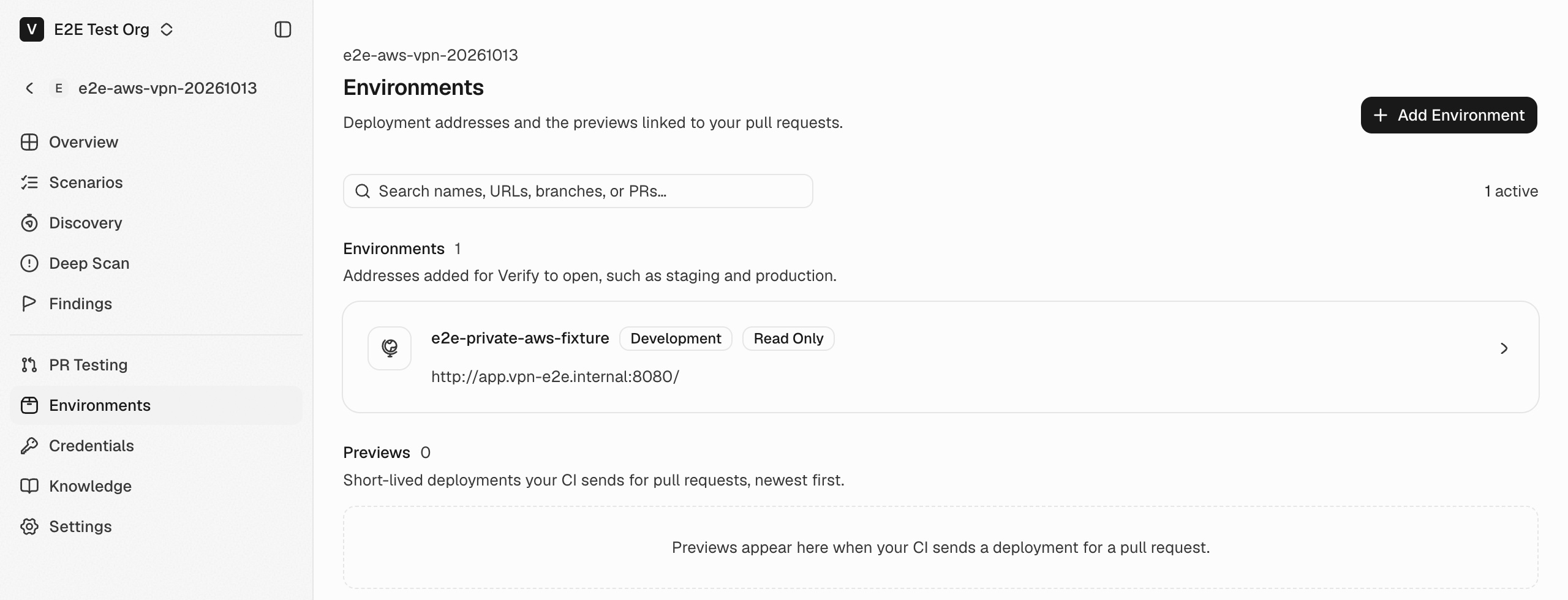
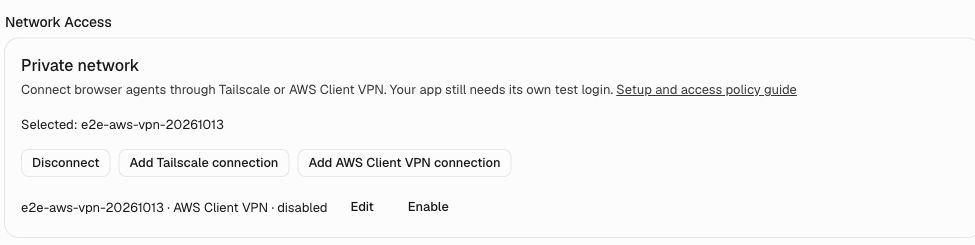
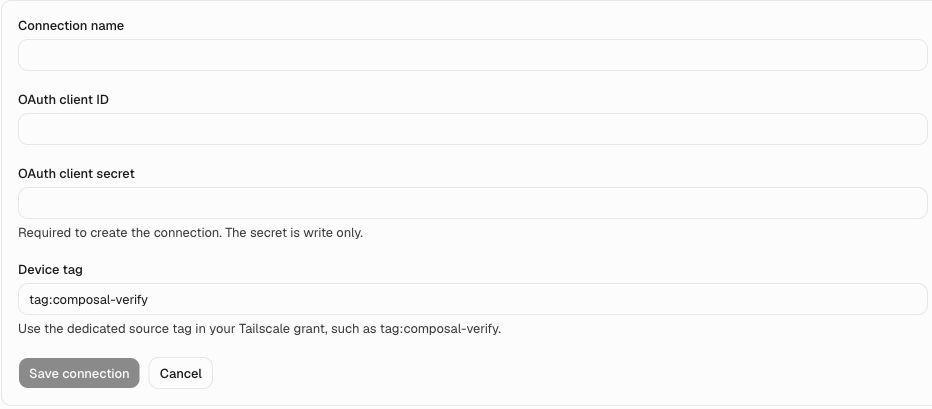
After saving, select your connection and confirm it is active. Then run the short journey described above to check enrollment and app access. For a standalone environment, open Verify → Environments and use the same Private network card.
Verify creates an isolated Tailscale device per browser sandbox. The connection grants network reachability only; saved cookies from your own cloud agents are not copied into Verify. Browser sign-in through the cloud credential capture flow currently accepts public login URLs only. For a private login URL, configure a test account that the Verify agent can use directly. Private-network support currently applies to browser runs from a selected environment; the owner-operated cloud login browser is separate.
Disabling a connection in Verify stops new enrollments. It does not immediately remove a device that is already running. For immediate revocation, remove the grant for tag:composal-verify or delete the active Verify device from the Tailscale Machines page.
Continue with scenario and MCP reference to define journeys and connect your agent.
For an AWS-native connection, see AWS Client VPN.